Documentation
Everything you need to know about signing up, admin controls, user workflows, and advanced features.
Getting Started
FAQ Helper is a white-label SaaS platform that allows companies to manage and share FAQs with their internal teams. Below you’ll find step-by-step instructions for Administrators and Users.
After purchasing a plan, you’ll receive an email containing:
- Admin Account credentials (email & temporary password).
- Company ID linking all users to your organization’s FAQs.
To create a user account, visit the Sign Up page and enter:
- Password & Confirm Password
- Company ID (provided by Admin)
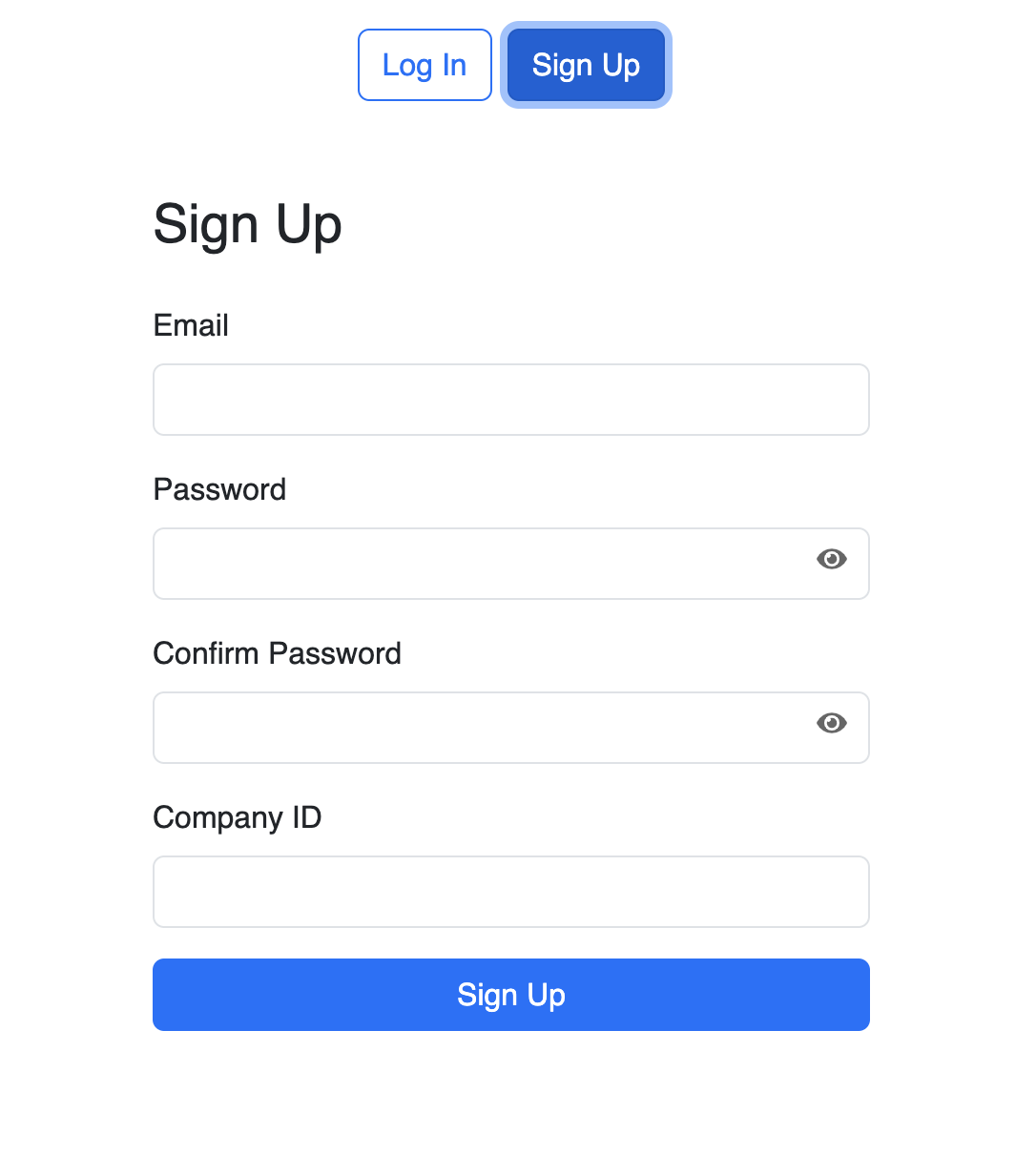
New accounts remain Pending Activation until approved by an Admin.
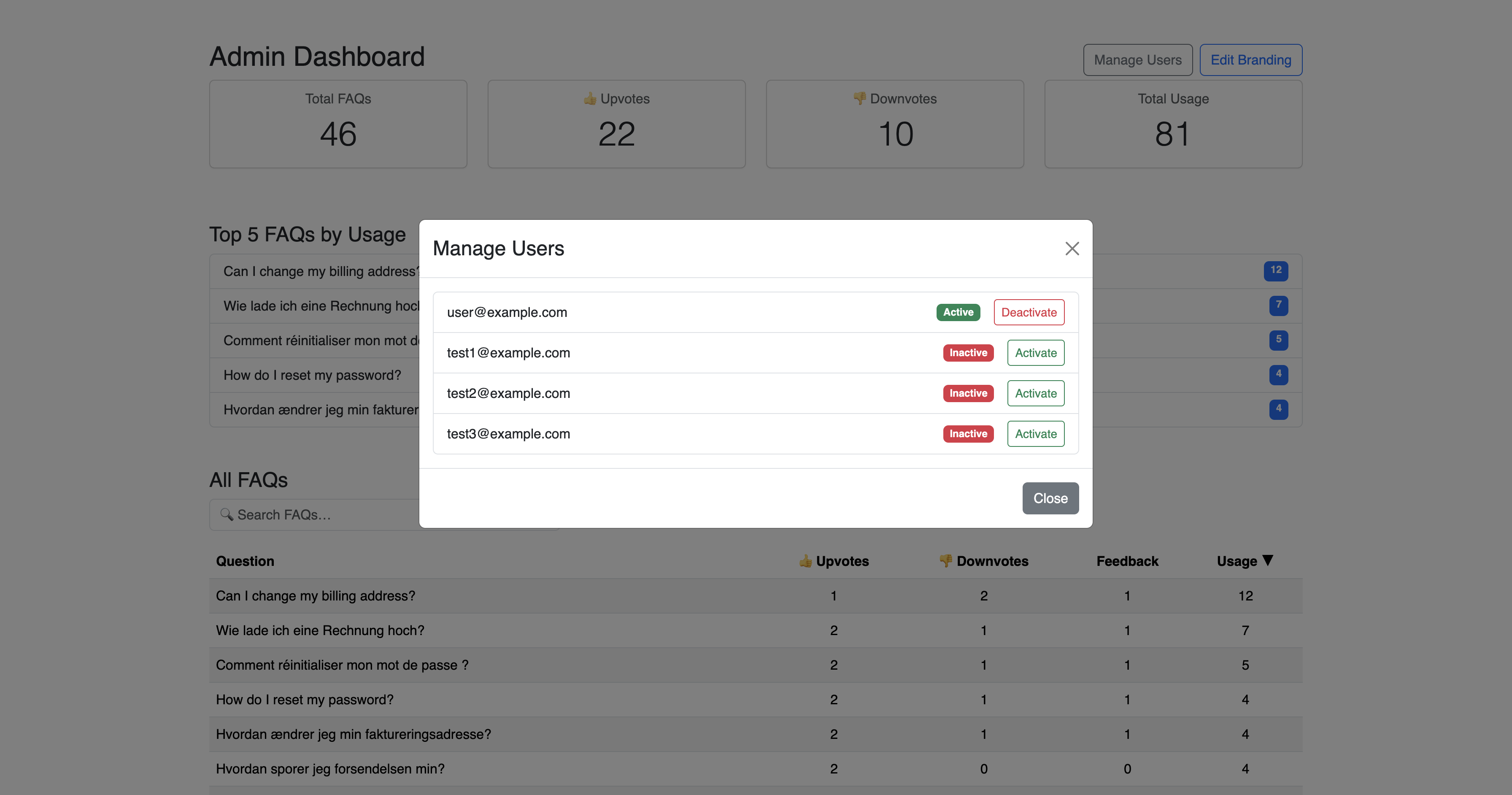
After sign-up, new users appear under Manage Users in your Admin Dashboard. To activate:
- Log in as Admin and select Manage Users.
- Find users with status Inactive and click Activate.
- Users switch to Active and can log in.
Once activated, users access the main FAQ workspace. Key features:
- Search Bar: Filters FAQs in real time with natural-language queries.
- Copy Answer: Click “Copy” to clipboard any answer.
- Pin FAQ: Mark FAQs to remain at top of your list.
- Feedback: Thumbs-up/down and comments below each answer.
- Create Custom FAQs: Click + New FAQ to add personal entries.
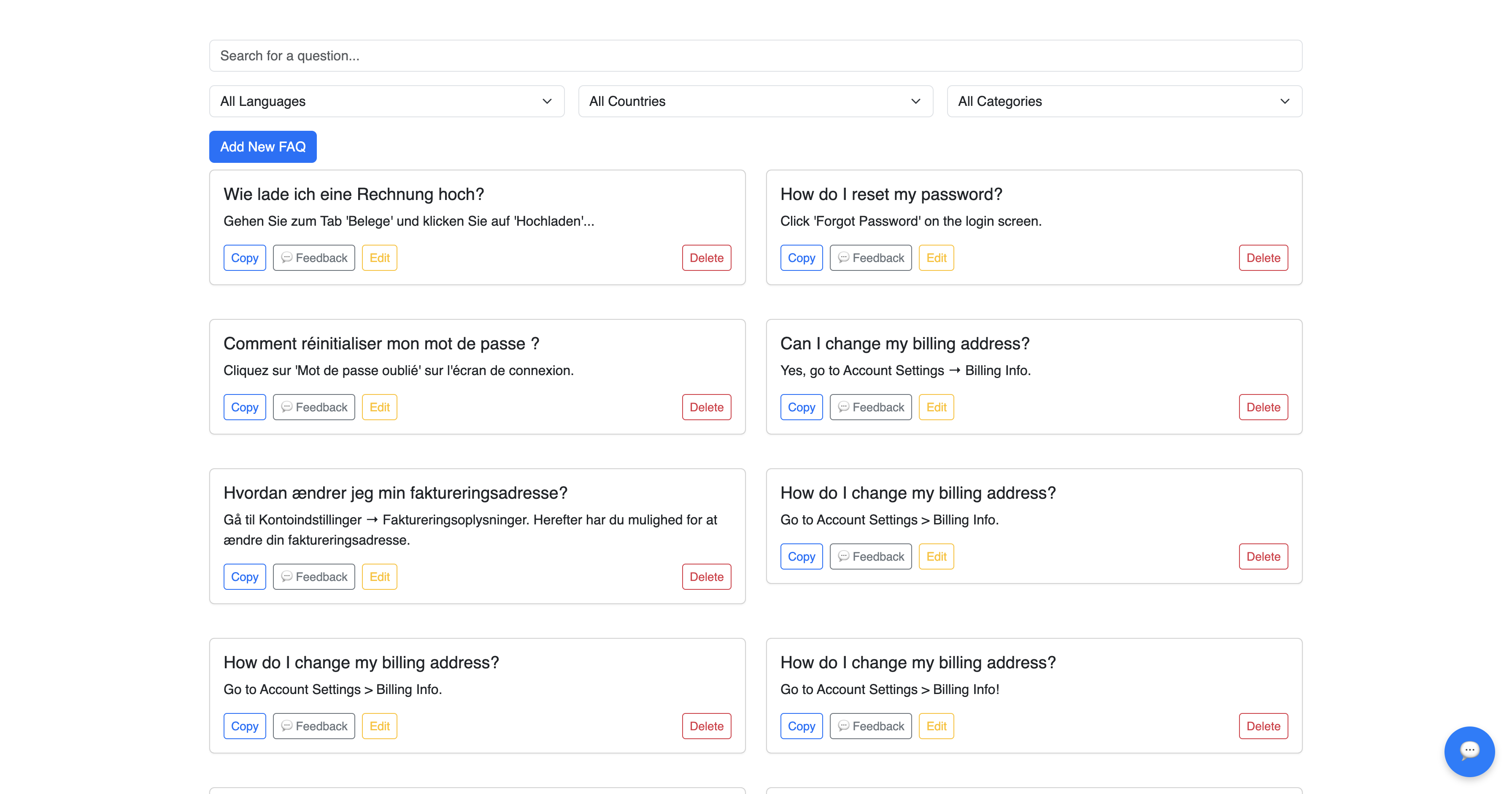
All FAQs are scoped to your Company ID for privacy.
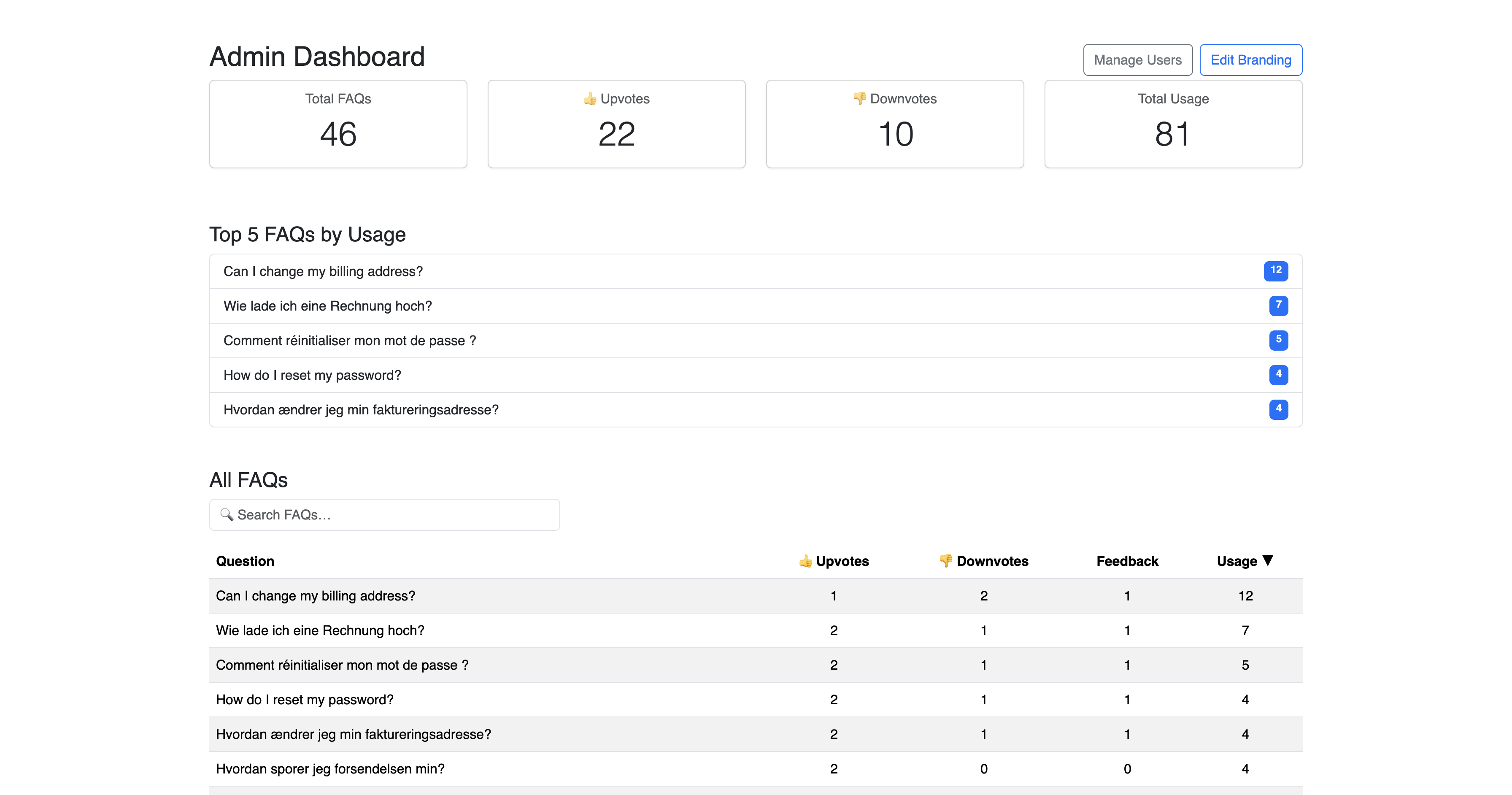
On the Admin Dashboard, you can:
- View Total FAQs: Count of global FAQs.
- Usage Metrics: Upvotes, downvotes, and copy counts.
- Top 5 FAQs: Most-used items.
- Feedback Details: Review comments and mark resolved.
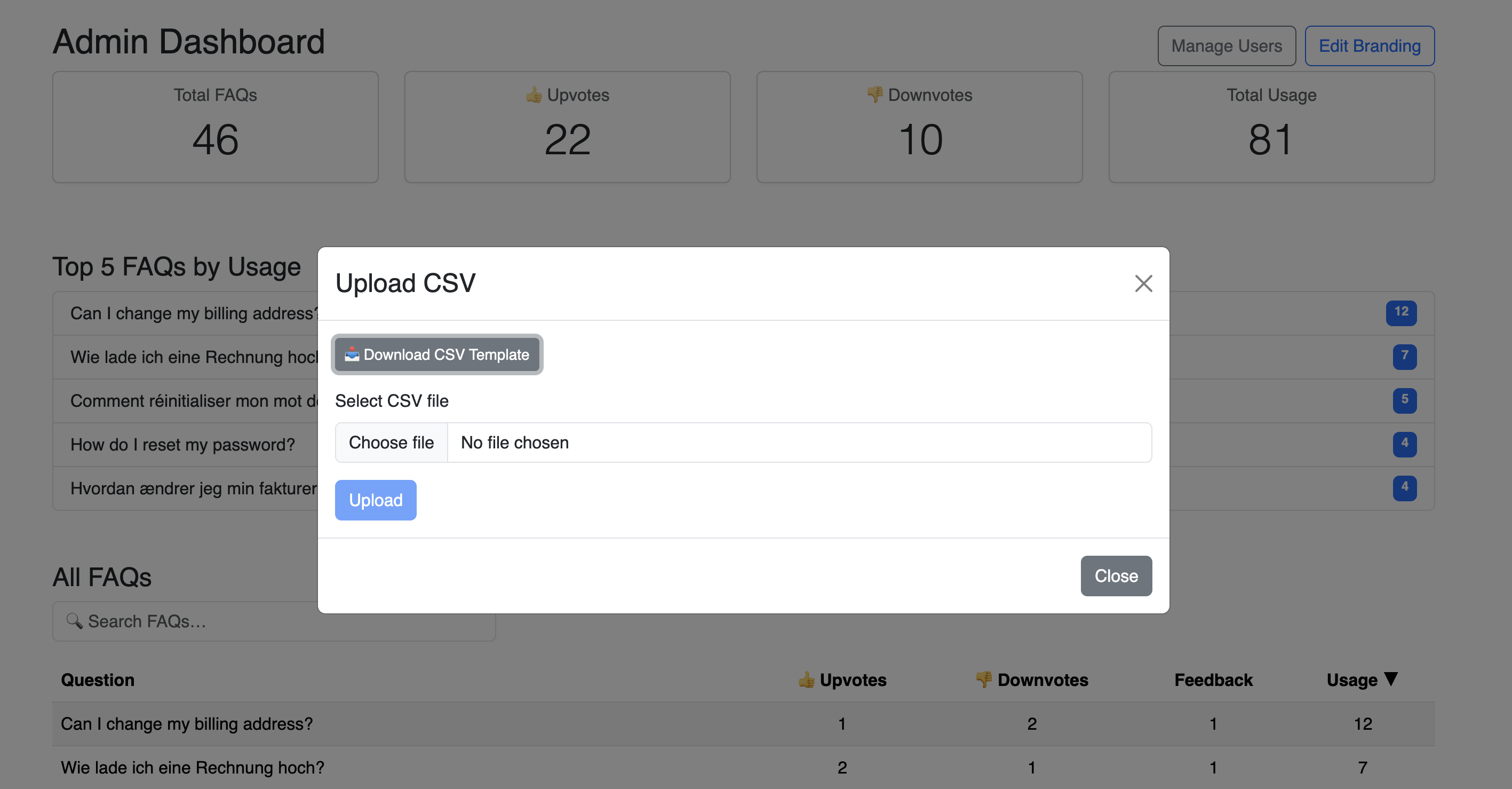
Use the Upload CSV feature to bulk manage FAQs:
- Click Upload CSV in the Admin Dashboard.
- Download the template with columns: question, answer, locale, category.
- Fill in your data and re-upload the
.csvfile. - Click Upload to import FAQs instantly.
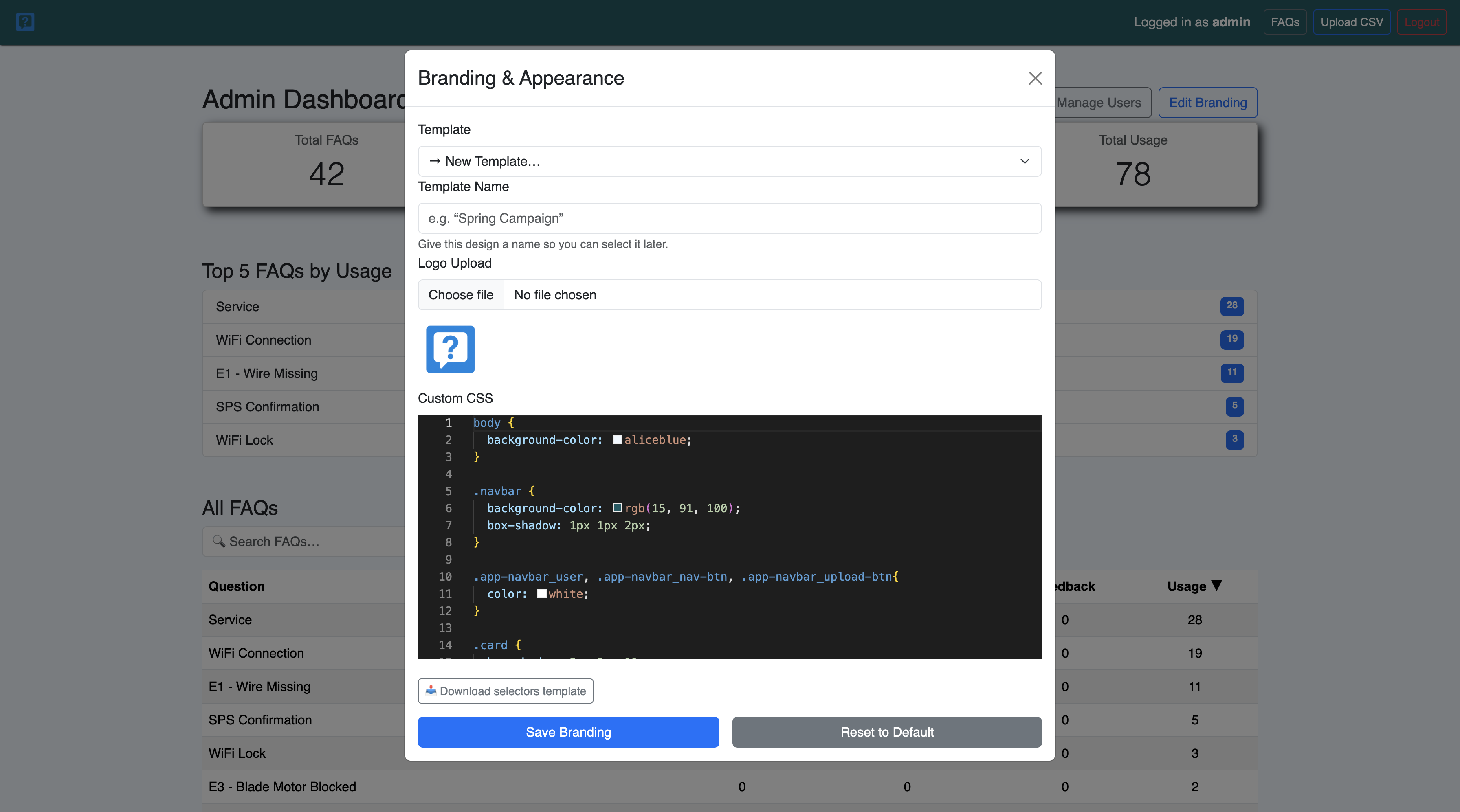
Customize FAQ Helper to match your brand:
- Create/Reuse Templates: Start or choose a branding template.
- Upload Logo: Add your logo for the header.
- Custom CSS Editor: Write live CSS overrides.
- Download Selectors Template: Get common class/ID mappings.
- Save/Reset: Apply or revert branding changes.
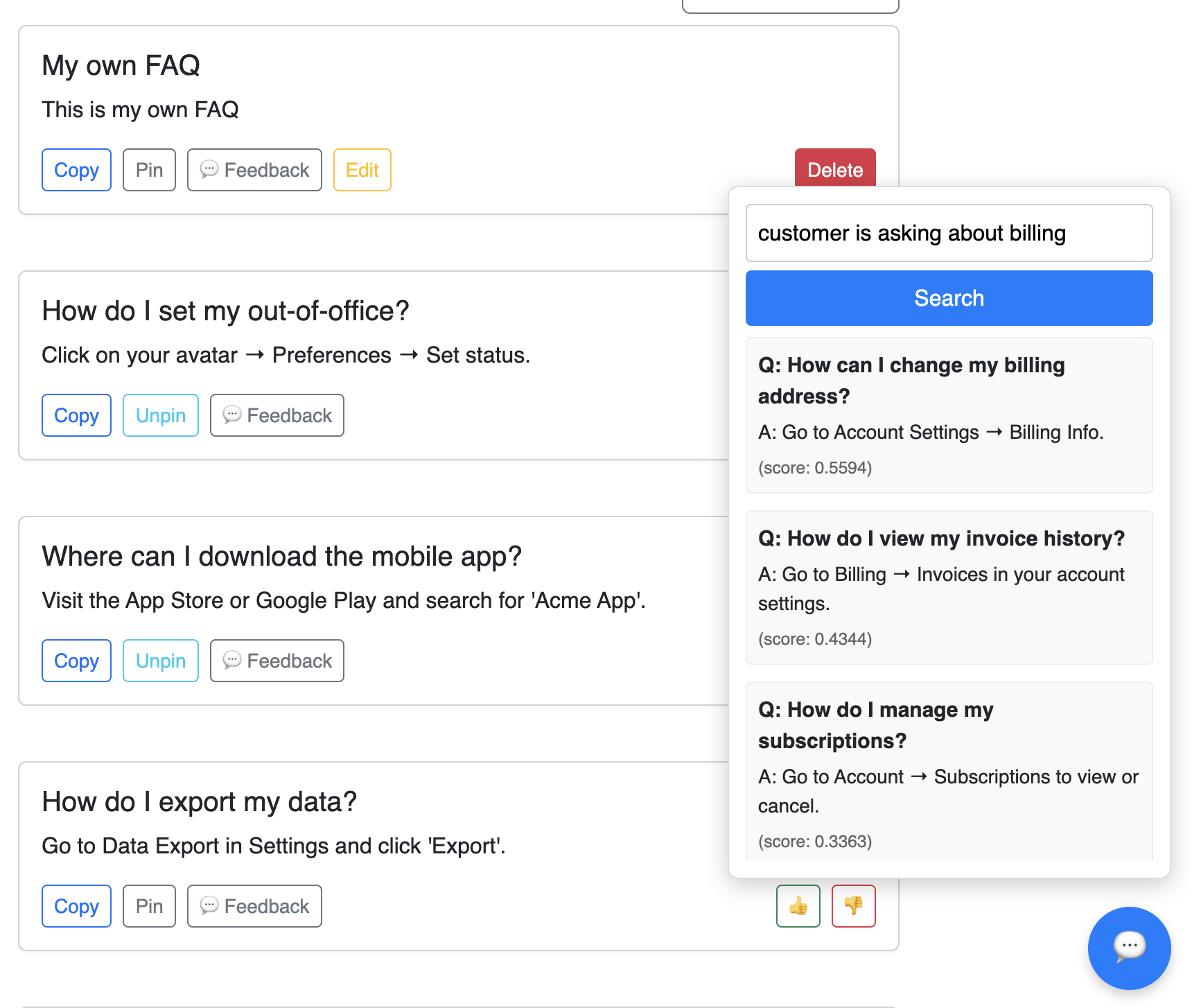
Click the AI Search icon on the FAQ page to open an AI chat popup:
- The AI analyzes your question and returns best-fit FAQs.
- Supports synonyms and multiple languages.
- Copy answers or navigate to full FAQ detail.
For issues or questions, review these common scenarios:
- Cannot Sign Up: Verify Company ID and activation.
- FAQs Not Visible: Ensure FAQs uploaded and account active.
- No Search Results: Try synonyms or ask Admin to review FAQs.
- Branding Not Applying: Clear cache or refresh (Ctrl+F5).
- CSV Errors: Validate headers and format.
If still stuck, email support@faqhelper.io for assistance (24h response).